သူငယ္ခ်င္းမ်ားလည္း ဖက္မွတ္ေစခ်င္ပါတယ္
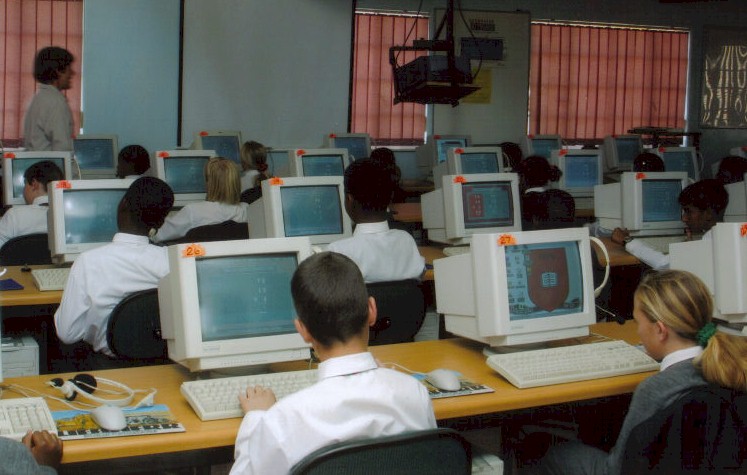
ကြန္ပ်ဴတာကို စတင္ေလ့လာသူမ်ားအတြက္ အေထာက္အကူျပဳမယ္လို ့ ယံုၾကည္ပါတယ္…
ခုဆိုရင္ ကုမၸဏီမ်ား၊ သင္တန္းေက်ာင္းမ်ား၊ တကၠသိုလ္ေက်ာင္းမ်ားပါ ကြန္ပ်ဴတာကို အသံုးျပဳေနၿပီျဖစ္တဲ့အတြက္ ကြန္ပ်ဴတာကို သံုးစြဲတတ္ရင္ အက်ိဳးမ်ားစြာရိွမွာ ျဖစ္ပါတယ္…
ကြန္ပ်ဴတာကို သံုးစြဲသူတိုင္းကလည္း ကြန္ပ်ဴတာရဲ့ အေျခခံအခ်က္အလက္၊ ကြန္ပ်ဴတာအေခၚအေ၀ၚမ်ားကို သိထားသင့္ပါတယ္…
ကြန္ပ်ဴတာဟာ ႏိုင္ငံတကာ ဆက္သြယ္ေရးလုပ္ငန္းအတြက္ မျဖစ္မေန အသံုးျပဳရန္လိုအပ္တဲ့အတြက္ ကြန္ပ်ဴတာကို သံုးတတ္ေအာင္ ေလ့လာသင္ၾကားထားသင့္ပါတယ္…
ယခုအခါ ေတးဂီတပညာရွင္မ်ားပါ ကြန္ပ်ဴတာကို ကၽြမ္းက်င္စြာ သံုးတတ္ေအာင္ ေလ့လာသံုးစြဲေနၾကၿပီ ျဖစ္ပါတယ္…
A typical computer system consists of several parts. These are computer case, monitor, keyboard, mouse, printer and modem.
ကြန္ပ်ဴတာမွာ အစိတ္အပိုင္းမ်ားစြာ ပါ၀င္ပါတယ္… အဓိက ပါ၀င္တာကေတာ့ -
Computer Case – A computer case contains most of the major components of a computer system.
ကြန္ပ်ဴတာ Casing မွာ အဓိကအစိတ္အပိုင္းမ်ားကို တပ္ဆင္ထားပါတယ္…
Casing မွာ ၂-မ်ိဳးရိွပါတယ္… Desktop Casing နဲ ့
Tower Casing ပါ…
Monitor – A monitor is a device that displays text and images generated by the computer.
Monitor ကေတာ့ စာေတြ၊ ပံုေတြျမင္ရေအာင္ လုပ္ေပးထားတဲ့ကိရိယာပါ…
Keyboard – A keyboard is a device that lets you type information and instructions into a computer.
Keyboard ကေတာ့ ကြန္ပ်ဴတာထဲကို အခ်က္အလက္မ်ား၊ ညႊန္ၾကားခ်က္ေတြကို ထည့္ေပးႏိုင္တဲ့ ကိရိယာပါပဲ…
Mouse – A mouse is a handheld device that lets you select and move items on the screen.
Mouse ကေတာ့ မိမိေရြးခ်ယ္လိုတဲ့အရာ၊ ေရႊ ့ေျပာင္းလိုတဲ့အရာေတြကို လုပ္ေဆာင္ႏိုင္တဲ့ လက္ကိုင္ကိရိယာေလးပါ…
Printer – A printer is a device that produces a paper copy of documents you create on the computer.
Printer ကေတာ့ ကြန္ပ်ဴတာမွာရိွတဲ့ အခ်က္အလက္ေတြကို စာရြက္နဲ ့ ထုတ္ႏိုင္တဲ့ ကိရိယာပါ…
Modem – A modem is a device that lets computers communicate through telephone lines. A modem can be found outside or inside the computer case.
Modem ကေတာ့ ဖံုးလိုင္းမွတစ္ဆင့္ ကြန္ပ်ဴတာအခ်င္းခ်င္း ဆက္သြယ္ႏိုင္ေအာင္ လုပ္ေဆာင္ေပးႏိုင္တဲ့ ကိရိယာပါ… Modem ကို အျပင္ဖက္ (သို ့မဟုတ္) ကြန္ပ်ဴတာ Casing အတြင္းမွာ တပ္ဆင္အသံုးျပဳႏိုင္ပါတယ္…
What is called Hardware and Software?
Hardware and Software are the two basic parts of a computer system.
ကြန္ပ်ဴတာမွာ Hardware နဲ ့ Software ဆိုၿပီး ၂-မ်ိဳးရိွပါတယ္…
Hardware is any part of a computer system you can see or touch.
Hardware ဆိုတာ ကြန္ပ်ဴတာကို ျမင္ႏိုင္ၿပီး ထိေတြ ့ႏိုင္တဲ့အရာမွန္သမွ်ကို Hardware လို ့ ေခၚပါတယ္… ဒါေၾကာင့္ Computer Case, Monitor, Keyboard နဲ ့ Mouse တို ့ဟာ Hardware ပဲ ျဖစ္ပါတယ္…
Software is a set of electronic instructions that tell a computer what to do. You cannot see or touch software.
Software ဆိုတာကေတာ့ ဘယ္လိုလုပ္ရမယ္ဆိုတဲ့ ကြန္ပ်ဴတာကို ခိုင္းေစႏိုင္တဲ့ ညႊန္ၾကားခ်က္ေတြကို ဆိုလိုတာပါ… ထိေတြ ့လို ့ မရႏိုင္ပါဘူး…
Software is divided into two kinds of software. These are Application Software and Operating System Software.
Software ကို Application Software နဲ ့ Operating System Software ဆိုၿပီး ၂-မ်ိဳး ခြဲထားပါတယ္…
Application Software allows you to accomplish specific task. Popular application software includes Microsoft Word, PhotoShop & AutoCAD.
Application Software ဆိုတာက မိမိလုပ္ငန္းနဲ ့ပတ္သက္ၿပီး ကၽြမ္းက်င္စြာ အသံုးျပဳႏိုင္တဲ့ ညႊန္ၾကားခ်က္ေတြကို ဆိုလိုတာပါ… ႐ံုးလုပ္ငန္းလုပ္တဲ့သူေတြအတြက္ စာစီစာ႐ိုက္လုပ္ႏိုင္တဲ့ Microsoft Word, PageMaker၊ အစည္းအေ၀းေတြမွာ Slide Show လုပ္ၿပီး Presentation လုပ္ေဆာင္ႏိုင္တဲ့ Microsoft PowerPoint၊ အခ်က္အလက္မ်ား ထည့္သြင္း သိမ္းဆည္းထားႏိုင္တဲ့ Micosoft Access၊ စာရင္းဇယားမ်ား တြက္ခ်က္ထည့္သြင္းႏိုင္တဲ့ Microsoft Excel၊ ဒီဇိုင္းမ်ား၊ ႐ုပ္ပံုမ်ားကို ျပင္ဆင္ႏိုင္တဲ့ PhotoShop၊ အေျခခံအင္ဂ်င္နွီယာပံုမ်ား ဆြဲႏိုင္တဲ့ AutoCAD ဆိုတာေတြဟာ Application Software လို ့ ေခၚပါတယ္…
Operating System Software controls the overall activity of a computer. Most new computers come with the Windows XP, Vista & Windows 7.
Operating Software ဆိုတာကေတာ့ ကြန္ပ်ဴတာရဲ့ လုပ္ေဆာင္ခ်က္အားလံုးကို ထိန္းခ်ဳပ္ေပးႏိုင္တဲ့ အရာပါပဲ… ကြန္ပ်ဴတာတစ္ခုမွာ Operating System Software ဟာ မရိွမျဖစ္လိုအပ္တာပါ… အခုေနာက္ပိုင္း ကြန္ပ်ဴတာမွာ တင္ထားတတ္တဲ့ Windows XP, Vista နဲ ့ Windows 7 ဆိုတာေတြဟာ Operating System Software ပါ…
How Computers Work
ကြန္ပ်ဴတာအလုပ္လုပ္ပံု
A computer collects processes, stores and outputs information.
ကြန္ပ်ဴတာဆိုတာ အခ်က္အလက္မ်ား စုေဆာင္းသိမ္းဆည္းျခင္းနဲ ့ အခ်က္အလက္မ်ားကို ျပန္လည္ထုတ္ေပးႏို္င္တဲ့ ကိရိယာပါ…
Input
An input device lets you communicate with a computer. You can use input devices to enter information and issue commands. A keyboard, mouse and joystick are input devices.
ကြန္ပ်ဴတာထဲကို အခ်က္အလက္ထည့္ေပးႏိုင္တဲ့ Keyboard၊ အမိန္ ့ေပးတာေတြကို ကူးယူေရႊ ့ေျပာင္းႏိုင္တဲ့ Mouse၊ Game ကစားရာတြင္ အသံုးျပဳတဲ့ Joystick တို ့ကို Input Device လို ့ေခၚပါတယ္…
Process
The Central Processing Unit (CPU) is the main chip in a computer. The CPU processes instructions, performs calculations manages the flow of information through a computer system. The CPU communicates with input, output and storage devices to perform tasks.
ကြန္ပ်ဴတာမွာ အဓိက ထိန္းခ်ဳပ္ထားတဲ့အရာကေတာ့ CPU ပါ… Central Processing Unit ပါ… ကြန္ပ်ဴတာတစ္ခုလံုးရဲ့ လုပ္ေဆာင္ခ်က္အားလံုးကို ထိန္းခ်ဳပ္ေပးထားတဲ့အရာပါ…
Store
A storage device reads and records information on storage media. The computer uses information stored on the storage media to perform tasks. Popular examples of storage devices include a hard drive, floppy drive, CD-Recordable drive and tape drive.
ကြန္ပ်ဴတာရဲ့ အခ်က္အလက္ေတြကို သိမ္းဆည္းေပးထားတဲ့ ကိရိယာကေတာ့ Hard Drive လို ့ေခၚတဲ့ Harddisk ပါ… မ်ားေသာအားျဖင့္ Hard drive C အျဖစ္ သိၾကမွာပါ… အရင္က Floppy drive၊ Tape drive တို ့ကို သံုးေပမဲ့ အခု မသံုးေတာ့သေလာက္ပါပဲ… ခုခ်ိန္မွာ Memory Stick၊ CD-R၊ CD-RW၊ DVD Drive တို ့ကို သံုးလာၾကပါၿပီ…
Output
An output device lets a computer communicate with you. These devices display information on a screen, create printed copies or generate sound. A monitor, printer and speakers are output devices.
အခ်က္အလက္ေတြ၊ ပံုေတြကို ျမင္ရတဲ့ Monitor၊ အသံေတြကို နားေထာင္လို ့ရတဲ့ Speakers၊ Microphone၊ စာရြက္နဲ ့ထုတ္ျမင္ရတဲ့ Printer စတာေတြဟာ Output Device ေတြပဲ ျဖစ္ပါတယ္…
Bytes
Bytes are used to measure the amount of information a device can store.
Byte ဆိုတာ မိမိသိမ္းဆည္းလိုက္တဲ့ ကြန္ပ်ဴတာအခ်က္အလက္က Size ဘယ္ေလာက္လဲဆိုတာ တိုင္းတာတဲ့စနစ္ပါ.. ကိုယ္သိမ္းဆည္းလိုက္တဲ့ စာက ဘယ္ေလာက္ KB ရိွတယ္၊ သီခ်င္းက ဘယ္ေလာက္ MB ရိွတယ္၊ ဓါတ္ပံုက ဘယ္ေလာက္ MB ရိွတယ္ဆိုတာ ေျပာတတ္ဖို ့လိုပါတယ္… တြက္တတ္ဖို ့ လိုပါတယ္… ကိုယ့္ရဲ့ ကြန္ပ်ဴတာ Hard disk က ဘယ္ေလာက္ GB ရိွတယ္ဆိုတာ ေျပာႏိုင္ဖို ့ လိုပါတယ္…
Byte
One byte is one character. A character can be a number, letter or symbol.
One byte consists of eight bits (binary digits). A bit is the smallest unit of information a computer can process.
One byte ဆိုတာ One character ပါ… နံပါတ္တစ္ခု၊ စာတစ္ခု (သို ့မဟုတ္) သေကၤတတစ္ခု ျဖစ္ႏိုင္ပါတယ္…
Kilobyte (K)
One kilobyte is 1,024 characters. This is approximately equal to one page of double-spaced text.
1 Kilobyte = 1,024 Bytes = 103 Bytes (nearly)
Megabyte (MB)
One megabyte is 1,048,576 characters. This is approximately equal to one book.
1 Megabyte = 106 Bytes
Gigabyte (GB)
One gigabyte is 1,073,741,824 characters. This is approximately equal to a shelf of books in a library.
1 Gigabyte = 109 Bytes
Terabyte (TB)
One terabyte is 1,099,511,627,776 characters. This is approximately equal to an entire library of books.
1 Terabyte = 1012 Bytes